Table of Contents
Export | Database
Export the existing database for either backup or for import on another system.
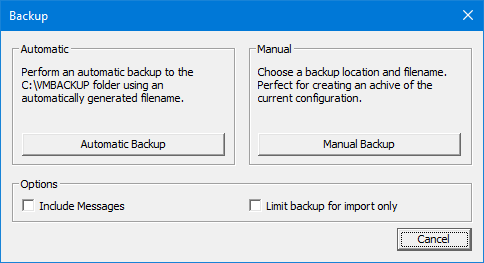
| Option | Description |
|---|---|
| OK | Click this button to close the application without performing a backup. |
| Automatic Backup | Click this button to create a backup in the default backup folder using an auto-generated filename. |
| Manual Backup | Click this button to select a custom destination folder and filename for the backup. |
| Include Messages | Check this box if you want all subscribers' voice messages included in the backup. This may greatly increase the size of the backup file, as voice recordings do not compress very much. This option must be set/cleared before you click either the Automatic Backup button or the Manual Backup button. |
| Limit backup for import only | The backup file will not backup every setting. This type of backup is designed to create a file to be used as a template for creation of new systems using the Import feature of import. |
Automatic Backup
To perform a quick, automatic backup to the default backup folder (C:\VMBACKUP) with an auto-generated filename, follow these steps:
- If you want user voice messages included, check the Include Messages box; otherwise, leave it unchecked.
- Click the Automatic Backup button.
- Once the backup is finished, the application will automatically close.
Manual Backup
To select the destination folder and filename for the backup, follow these steps:
- If you want user voice messages included, check the Include Messages box; otherwise, leave it unchecked.
- Click the Manual Backup button. This will open a Save As dialog.
- Navigate to the folder where you want the backup to be written.
- You may also enter a custom filename, but you should keep the
.VMBfile extension so that the Restore application will recognize it as a backup file. - Click Save to accept your changes.
What gets backed up
- By default the back saves all configuration settings, databases and report information.
- Entire Database including:
- Mailboxes including
- Greetings
- Prompts
- Members of List and Groups
- Wakeup calls
- Scheduled events.
- Inventory
- Room status
- Accounts
- All active templates including Notifications, Message Delivery and active line templates.
- All custom language files. These must be located in the CUSTOM folder for the language as documented in the manual.
- Telephony configuration.
- Contents of c:\vs\database.
- License file.
- Dialogic SIP license.
- Messages only if told to do so.
Where Backup Files are Stored
By default, all backup files are stored in the C:\VMBACKUP folder unless you use the Manual Backup option to select a custom folder.
Each file is named using the format:
<license number>-<product version>-YYYYMMDDHHMM.vmb
For example, a backup at 11:30 p.m. on March 15, 2017 on a 7.00.59 system with license number 12345 would produce the following file:
12345-6-00-59-201703152330.vmb